
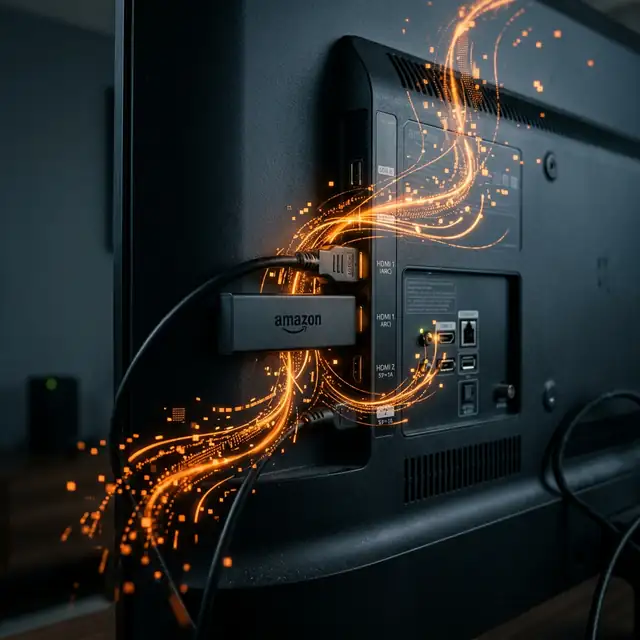
Why Amazon Fire TV Stick Reigns Supreme for IPTV
When evaluating media streamers in 2026, the Amazon Fire TV Stick remains the undisputed champion for IPTV enthusiasts. It seamlessly packs powerful processing, 4K HDR visuals, and Alexa-enabled voice search into a compact, budget-friendly dongle.
The primary reason cable cutters prefer the Firestick over built-in smart TV systems is its unmatched sideloading capabilities. Because it runs on a modified Android OS, you can rapidly install powerful IPTV applications missing from standard app stores, unlocking endless international viewership.
What You Need Before Starting
Gather the following essentials before initiating the setup to ensure a hassle-free deployment:
- An Amazon Fire TV Stick — For lag-free menu navigation and flawless 4K output, the 4K Max variant is highly advisable.
- High-Speed Internet — Aim for at least 25 Mbps for standard HD broadcasts, and 50+ Mbps if you plan on streaming 4K Ultra HD events.
- A Premium IPTV Plan — Obtain unparalleled access to live global networks by subscribing to Aurex TV today.
- An IPTV Application — We highly recommend versatile players such as TiviMate, IPTV Smarters Pro, or OTT Navigator.
Step-by-Step Installation Tutorial
Phase 1: Enable Third-Party Applications
From the Firestick home dashboard, go to Settings → My Fire TV → Developer Options. Here, activate "Apps from Unknown Sources." For devices running recent updates, you might have to individually grant permission under "Install Unknown Apps" for specific utility tools.
Phase 2: Install the Downloader App
Access the Amazon App Store via the search function and look for the "Downloader" application (created by AFTVnews). This necessary tool lets you bypass Amazon's ecosystem restrictions to fetch independent APK packages.
Phase 3: Sideload Your IPTV Player
Open Downloader and insert the direct APK URL for your chosen player software. Some of the most robust choices include:
- IPTV Smarters Pro — Praised for its excellent multi-screen layout and robust VOD integration.
- TiviMate — Widely considered the gold standard for premium UI design and extensive categorization.
- OTT Navigator — Perfect for users prioritizing lightning-fast channel zapping and low latency.
Phase 4: Input Server Credentials
Launch your newly installed player to link your active subscription. You will generally be asked to provide one of these formats:
- Xtream Codes API (Requires a Portal URL, Username, and Password).
- An M3U Playlist Link (A direct link to your personalized channel repository).
After hitting connect, your chosen app will download the Electronic Program Guide (EPG) and channel icons. Be patient, as massive libraries can take a moment to synchronize fully.
Expert Hacks for Flawless Playback
Implement these technical adjustments to guarantee pristine, uninterrupted video:
- Hardwire Your Connection: Use an OTG Ethernet adapter to replace unstable Wi-Fi signals with a dedicated, lag-free internal network line.
- Regularly Clear Caches: Navigate to Settings → Applications → Manage Installed Applications, and clear temporary data from your IPTV player to free up RAM.
- Deploy a Reliable VPN: Internet Service Providers frequently throttle IPTV data packets. A solid VPN encrypts your connection (see our detailed top VPN rankings here).
- Modify Video Buffers: Configure your player’s internal settings to utilize a "Large" or "Very Large" buffer, compensating for minor server internet dips.
- Keep Software Updated: Regularly checking for Amazon OS updates prevents memory leaks and visual bugs.
Troubleshooting Frequent Firestick Errors
Constant Video Stuttering
First, test your download speed directly from the Firestick to ensure you are receiving the required bandwidth. If speeds look solid, turn on your VPN to circumvent ISP throttling and bypass routing blockades. For an exhaustive breakdown of network remedies, head over to our buffering resolution tutorial.
Player Applications Force-Closing
Random app crashes frequently stem from low physical memory. Clear out old applications and ensure your Firestick maintains at least 500 MB to 1 GB of open storage. If problems persist, deleting and reinstalling the IPTV app APK usually resolves corrupted file structures.
Authorization or "Playlist Failed" Errors
Double-check your M3U URL or login parameters. These credentials are case-sensitive; a single incorrect character will block the server connection. Also, make sure your subscription hasn't inadvertently expired by checking your customer panel or contacting support.
"Pairing the latest Firestick module with my Aurex IPTV account completely changed how my family watches television. Zero buffering during big fights, and the movie on-demand library runs beautifully." — Verified Aurex Client
Final Thoughts: The Ultimate Cord-Cutting Companion
For individuals seeking monumental savings without sacrificing visual fidelity, the Amazon Fire TV Stick is virtually unbeatable. The quick setup bypasses the hassle of clunky set-top boxes, instantly integrating thousands of live broadcasts into your living room.
By registering for a dependable provider like Aurex TV, you unlock an elite multimedia environment featuring over 45,000 channels, extensive 4K sports availability, and thousands of VOD titles.